Bring the right people into your design
A quick look, a private review, and a shared editing session need different access. Choose the simplest option that lets the other person do what you intend.
Choose how someone joins
| Option | Who can open it? | What can they do? |
|---|---|---|
| Viewing link | Anyone who has the link; no account needed. | Look around and explore the latest saved design. |
| Named viewer | The existing ChatHome.ai account you add. | Open the design and watch a live session with viewing access. |
| Named editor | The existing ChatHome.ai account you add. | Change, save, and rename the design with you. |
The owner manages membership, public links, and deletion. A viewer is a good starting choice when you want someone to review the idea without changing it.
Create a viewing link
Save your work as a named cloud design. Open Designs and use the link control beside the design you own to copy its viewing address. Share it with the people you want to show around.
Know which version they see
The link opens the latest saved scene. If you continue changing that cloud design, someone opening the link later sees the newer save. Save a separate alternative when you want to keep a particular version for review.
Current viewing links carry the Made with ChatHome.ai badge. See current access and planned pricing for the planned package differences.
Add a named viewer or editor
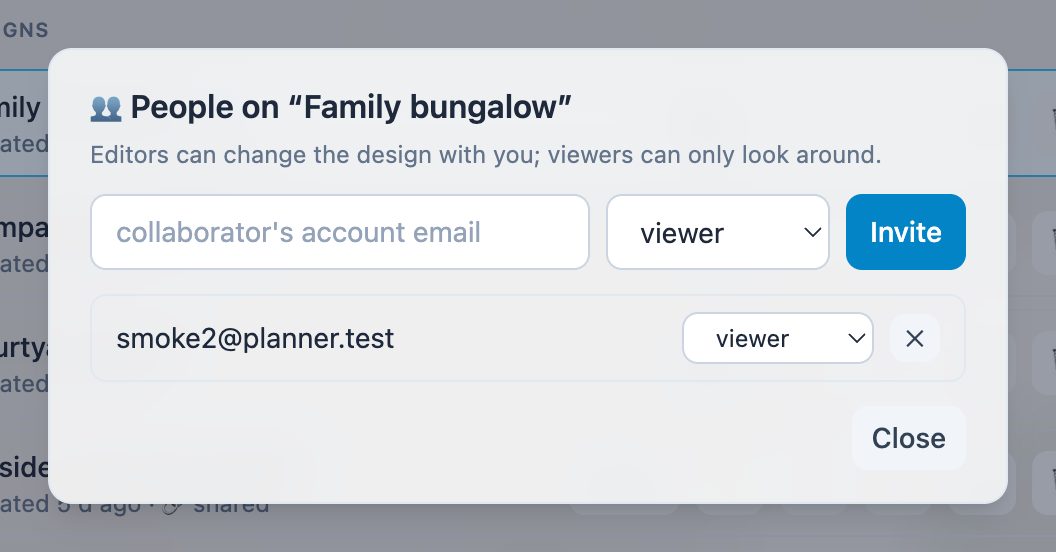
In Designs, open the people control for your design. Enter the person's existing ChatHome.ai account email, choose Viewer or Editor, and select Invite. Check the address and role before completing the action.
The design appears in their Shared with me list. Let them know where to find it; adding access does not send an invitation email.
Know whose unit choice is saved
Owners and editors can save the design's m or ft preference. A named viewer's choice is local to their screen; reopening follows the saved design preference. The public viewing link has no measurement labels or unit controls. Use a dimensioned PDF when a link recipient needs to review sizes.
Change or end access
Manage a person's role
Use the role selector in the people dialog to switch between Viewer and Editor. Remove a member when their access should end; removal also ends their live session.
Stop sharing a link
Use Stop sharing beside the design in Designs. The old link stops working. Sharing again creates a new address, which you will need to send to anyone who should regain link access.
Public links and named membership are separate. To end both routes, revoke the public link and remove the relevant members.
Agree how you will edit together
Opening a design with members joins its live session. Agree which rooms or objects each person is changing. If two people edit the same object, the latest edit wins and the app shows a notice.
Generation, import, and clear actions can replace the shared scene for everyone. Save a backup before a major change. Editor undo is paused during live collaboration, so take small, deliberate steps while working together.
Keep exploring
Try it with your own design
Back to Share and collaborate.