Keep a design you can come back to
A JSON design file is a useful copy to keep before a major change, after a review, or alongside an alternative you may return to. It contains the editable scene you can import into ChatHome.ai.
Know where your design is saved
In this browser
Browser autosave keeps the current local scene as you work. It belongs to this browser on this device. Clearing site data can remove it, so keep a downloaded file for work you want to retain independently.
In your account
A named cloud design begins with an explicit save through Designs. Once that design is open, changes sync after a pause. Check the design name and synced status before closing the session.
In a downloaded file
A JSON export records the scene at the time you download it. It stays separate from later edits. PNG captures and GLB models are useful companions, while JSON is the file to use for restoring the editable design.
Download a backup
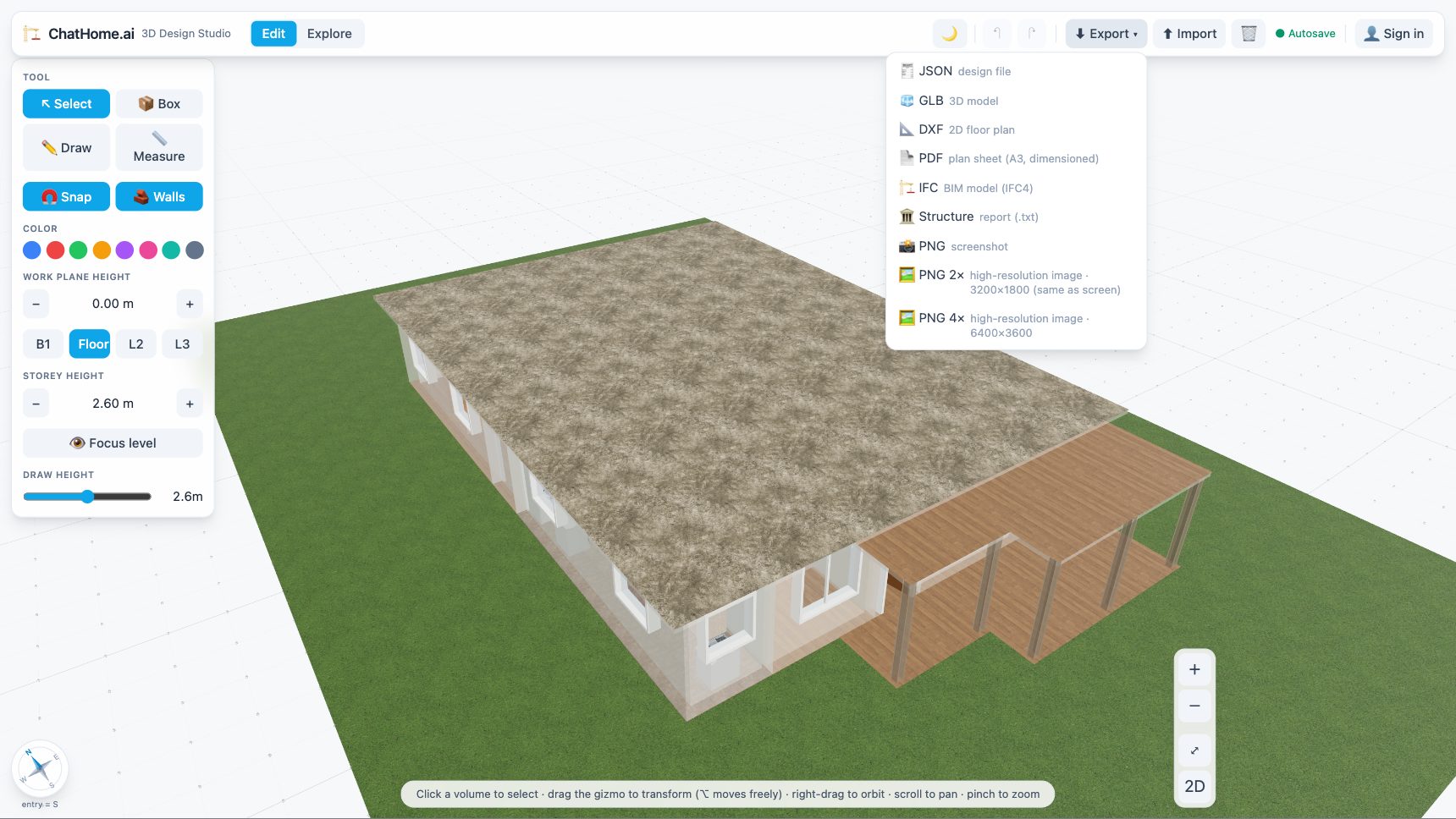
Open the scene you want to keep, then choose Export → JSON design file. Check your browser's download location and rename the file clearly, keeping the .json extension.
Use a name you will recognise
Try “garden-home-kitchen-option-b-2026-09-10.json.” Keep related images or review notes under the same project name. JSON design downloads are included on every plan.
Prepare before restoring a file
Export the scene already on your screen before importing another. Import replaces the working scene. If a cloud design is open, the imported scene can be saved back to that design.
Keep the original cloud design separate
Use Designs → Save current as… to make a separate restoration copy before importing, or use an editor session with no cloud design open. Check the current design name so you know where any subsequent autosave will go.
In a live design, import replaces the shared scene for collaborators too. Use a separate design for a restoration check.
Import and inspect the restored scene
Choose Import and select the JSON file. Review the plan, switch to 3D, and check the important rooms, openings, and furnishings. Keep the original downloaded file while you confirm the result.
A JSON file stores the model in metres and does not carry the m or ft display preference. Import keeps the unit already on your screen without resizing the design. Opening a saved cloud design, by contrast, restores that design's unit choice. Understand saved units.
If an import notice appears
ChatHome.ai checks the file as it opens. A notice such as “Design imported with fixes” means some data needed adjustment. Read the listed issues and inspect those parts before treating the restored copy as your next working version.
If the file cannot be opened, retain it and try another known backup. A .json extension alone does not make a file a compatible ChatHome.ai design.
Make the next save deliberate
Once you are happy with the restoration, save it under a clear cloud name if you want to continue across devices. If a “changed elsewhere” notice appears, pause and check which copy should be kept. Download a new JSON copy after the next milestone rather than relying on undo as a long-term record.
Keep exploring
Try it with your own design
Back to Save and share.