Make the next version closer to what you want
Your first concept gives you something to react to. Look around, choose the change that matters most, and develop the design one step at a time.
1. Get to know the current plan
Read the notes
Check assumptions and warnings for changed sizes, missing items, and requests that could not fit. Then inspect the layout in the plan view and in Explore. Learn how to read your design results.
Ask a question
Use Ask when you want information about the generated plan. Try “How large is the main bedroom?” or “Which roof does this design use?” Questions do not change the scene or spend a generation.
Ask refers to the generated plan. If you have edited the scene by hand since generation, inspect those changes directly in the editor.
2. Choose one clear revision
Say what should change
Try “Make the study larger,” “Use sage walls in the bedroom,” or “Try a U-shaped counter arrangement in the kitchen.” Name the room or feature so the request is easy to review. Include metres or feet with any new dimensions; choosing ft on screen does not supply missing units in your message.
Explain your priorities
If one room needs more space, say where you are willing to compromise. A revision rebuilds the layout around the rooms you did not name, which keep their row and their place; their sizes may change.
Work within the house outline
A revision keeps the outline of the house (its built width and depth) unless you ask to resize it. A room you add or enlarge takes its space from the other rooms, and an added storey keeps the same outline. Room sizes can still change; a room's position changes only when you name that room, when the change cannot be built with it in place (What changed says which rooms moved and why), or when you ask to rearrange the layout.
To change the house itself, ask directly: “make the house 20% bigger” or “make the house 12 by 18 metres.” Changing plot dimensions or the entrance side can also allow a different outline, so state those changes deliberately.
When a change does not fit
If the requested change cannot fit inside the existing outline, it is declined with the reason, and your plan stays as it was. A result marked “declined — plan unchanged” keeps the scene and uses no generation. You can simplify the change, identify another room that can give up space, or ask to resize the house.
3. Check what changed
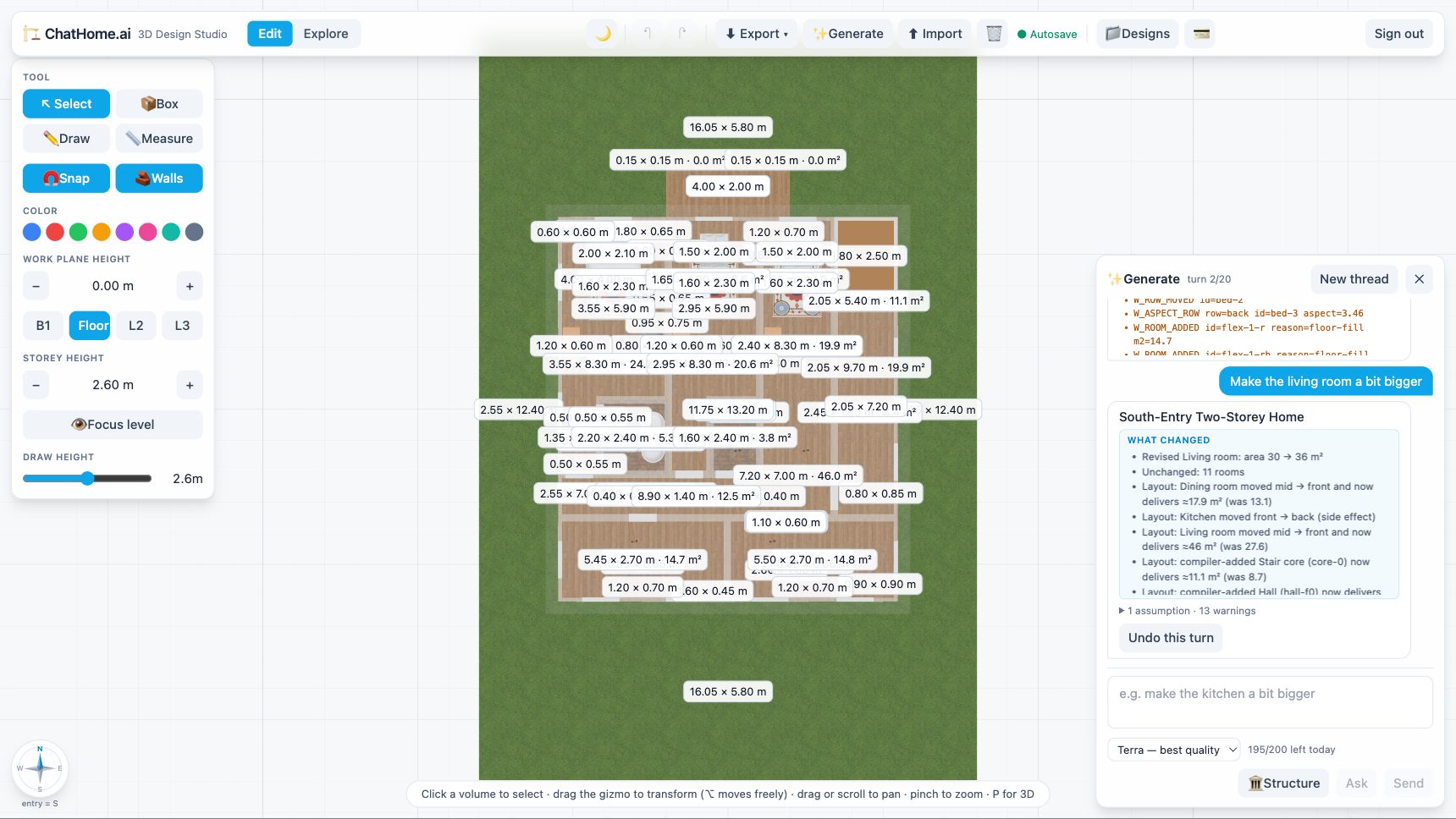
Read the What changed summary and inspect the updated design. Check both the outline and the rooms, including any request that was not applied. Work through a brief that needs adjusting.
The outline can sometimes shift by up to 0.10 metre in width or depth to keep a workable layout or avoid moving more rooms. The summary reports that adjustment. If an older design is rebuilt using an updated wall model, it also explains that some differences come from the update.
Use the notes to identify the part that needs attention. Clarify its dimensions, change the available space, or compare another arrangement while keeping your main priorities clear.
4. Use the editor for hands-on changes
Move or resize a piece, adjust an opening, or try a finish directly in the studio. These edits do not spend your AI generation allowance.
Keep hand edits before returning to chat
AI revisions start from the generated plan rather than treating every hand edit as a new instruction. A revision can replace those edits. Save a separate design or export JSON before continuing.
5. Keep the alternatives you want
Save a separate design
Give alternatives useful names, such as “Larger kitchen” and “Extra study.” Cloud designs save the latest scene; they do not keep an automatic version history. Keep and compare separate design alternatives.
Use undo where it is available
Editor undo works within the current solo session. Undo this turn can restore an earlier generated result when that action is shown. Undo and redo are disabled in live collaboration.
Continue in a new conversation
A conversation supports up to 20 generated turns, including its first result. At the limit, save the concept you want to keep and start a new thread to continue exploring. Questions do not add generated turns.
Make one change worth exploring
Open your design in the studiolearn how to keep an alternative